

![[Logo: ComfyUI]](../../_static/banner_logos/comfyui_logo.png)
ComfyUI#
2026-07-09
9 min read
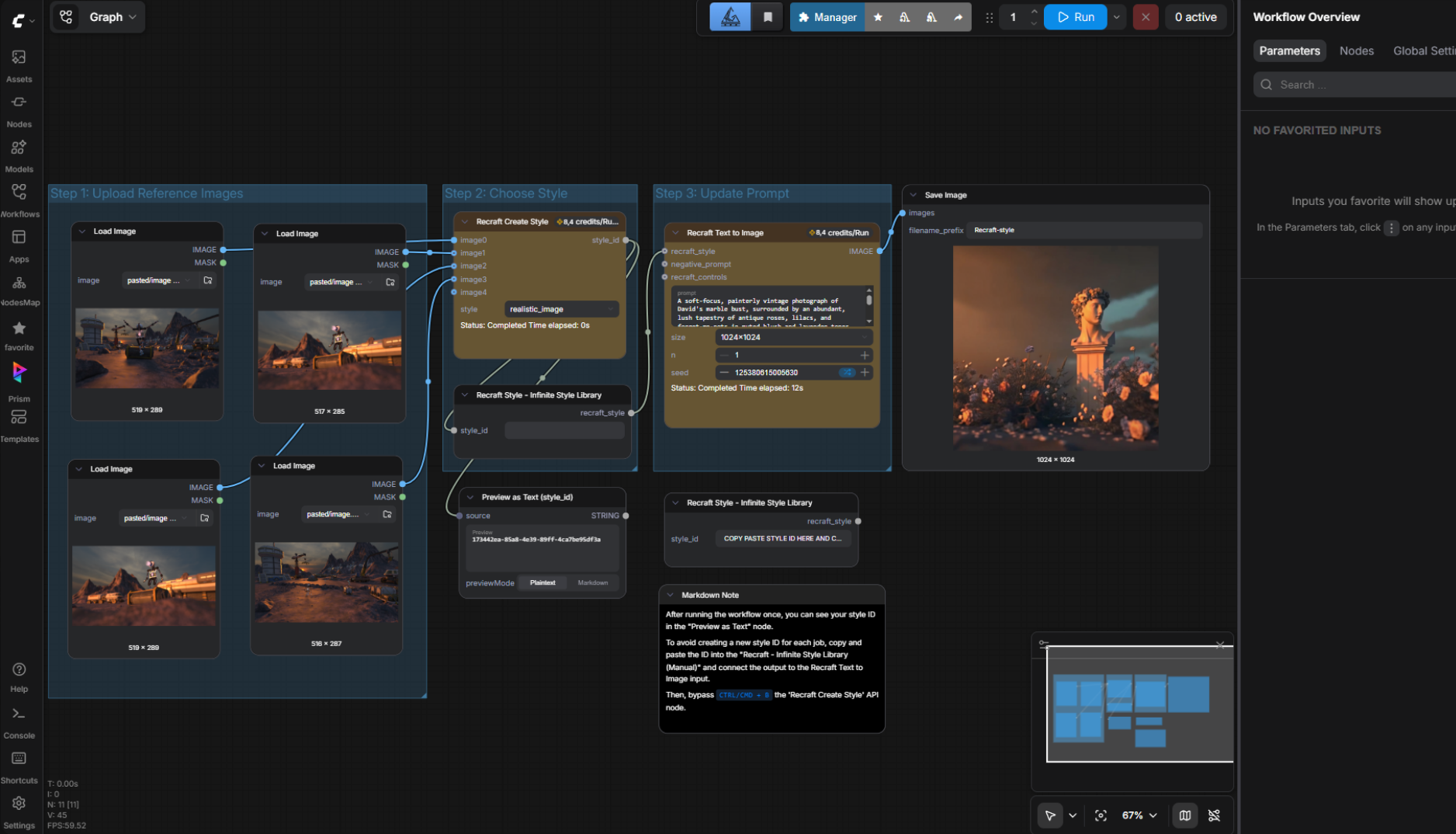
Setup#
Prism User Settings > DCC apps > ComfyUI > Add.custom_nodes/prism_pipeline%USERPROFILE%\ComfyUI-Installs\*\ComfyUINote
Restart ComfyUI after adding or updating the integration. ComfyUI loads custom nodes only during startup.
Accessing Prism in ComfyUI#
save a new workflow version
open the Prism Project Browser
open the Prism Settings
Prism Save Media node is created, it includes a Select Entity... button. This button opens the Prism entity selector and fills the node with the selected asset or shot context.ws://localhost:8765. The browser-side Prism extension reconnects automatically and can launch the Prism Comfy context process when needed.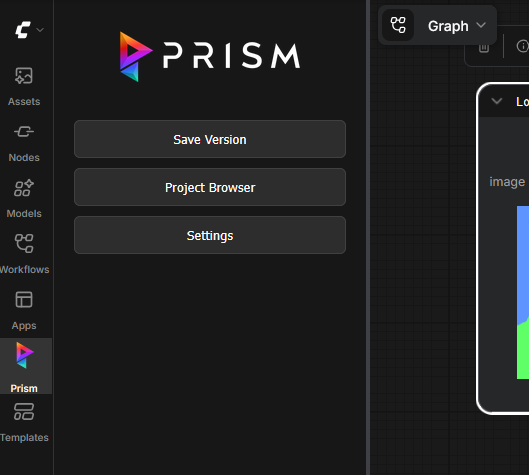
Workflow Integration#
.json extension.PRISM_COMFYUI_PATH environment variable.Importing Media and Assets#
standard image files: load into
LoadImagevideo files (for example
.mp4,.mov,.webm): load intoLoadVideoif availableEXR files: prefer
◎ RadianceDigitalCinemaRead, thenLoadEXR/LoadExr, then fallback toLoadImage3D product files: route to product loaders (see below)
◎ RadianceDigitalCinemaRead specifically, Prism writes the imported EXR path into the source_path parameter..gltf.glb.fbx.obj
3d input subfolder and then loaded through the first available compatible node in ComfyUI:Load3DLoad3dLoadModel
Prism Save Media Node#
Prism Save Media in the Prism category.asset: Asset path for asset-based outputs.sequence: Sequence name for shot-based outputs.shot: Shot name for shot-based outputs.identifier: Media identifier or task name used for the output.version: Version to write. Usenextor leave version handling to Prism when auto-versioning is desired.images(optional): Image input to save.video(optional): Video input to save.video_format(optional): Video container selection.video_codec(optional): Video codec selection.
images or video) is required.<base>_00001.png, <base>_00002.png, ..._video to avoid naming collisions with image outputs.asset. For shot outputs, set sequence and shot. The Select Entity... button on the node can fill these fields from the Prism entity selector.Execution Graph Automation#
Submit Workflow (Local)#
Path: Path to the ComfyUI workflow JSON file.Inputs: Optional input overrides for nodes in the workflow.Wait For Completion: Wait until the workflow has finished before continuing.Output Dir: Optional output folder or output filepath for downloaded results.
127.0.0.1:8188.Output Dir points to a file path (for example C:/tmp/result.png), Prism treats it as a file target and auto-appends index suffixes for additional outputs.Submit Workflow (Cloud)#
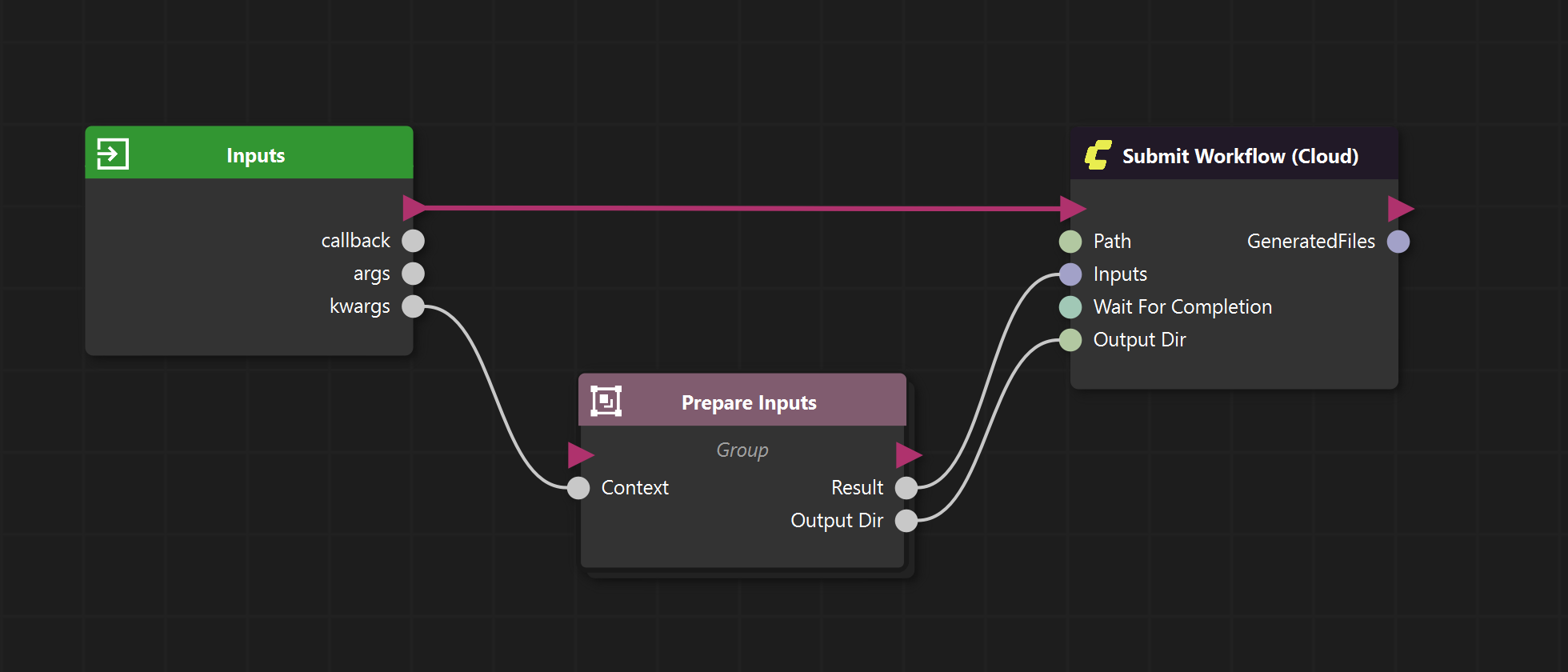
Path: Path to the ComfyUI workflow JSON file.Inputs: Optional input overrides for nodes in the workflow.Wait For Completion: Wait until the cloud job has finished before continuing.Output Dir: Optional output folder or output filepath for downloaded results.
GeneratedFiles containing the downloaded result paths when output downloading is enabled.Settings#
comfyui > localServerAddressLocal ComfyUI server address used for local workflow submission. The default is
127.0.0.1:8188.comfyui > cloudApiKeyComfy Cloud API key used for cloud workflow submission.
comfyui > cloudBaseUrlComfy Cloud API base URL. The default is
https://cloud.comfy.org.
Environment Variables#
PRISM_COMFYUI_PATHOptional override for the ComfyUI root folder. When this variable is set, Prism uses it for workflow and input path resolution. When it is not set, Prism uses the root folder reported by the running ComfyUI custom node.
%USERPROFILE% as part of its default path conventions. This is the standard Windows user profile variable and does not need to be set manually in most environments.%USERPROFILE% is used for default ComfyUI install discovery and for the optional shared input folder:%USERPROFILE%\ComfyUI-Shared\inputPRISM_SHOW_DEFAULT_SCENEFILE_PRESETSOptional toggle for loading default ComfyUI scene presets from the plugin Presets folder. Default is
1(enabled).
Frequently Asked Questions#
I installed the Prism-ComfyUI plugin, but Prism does not appear in ComfyUI?
Make sure the Prism integration was added to the correct ComfyUI installation and that the custom_nodes/prism_pipeline folder exists in that installation. Restart ComfyUI after adding the integration.
The Prism buttons in ComfyUI do nothing. What should I check?
Prism and ComfyUI communicate through local WebSocket connections. Restart ComfyUI and Prism, then check that the Prism integration is installed in the ComfyUI instance you are using. If another process blocks the Prism communication ports, the buttons cannot reach Prism.
Prism closes shortly after startup. Is this expected?
Yes, if no ComfyUI websocket connection is established within 30 seconds, Prism closes the Comfy context process by design. After an established connection is lost, Prism also closes after a 15 second reconnect grace period.
Saving a workflow fails because Prism cannot find the ComfyUI folder. How can I fix it?
Restart ComfyUI so the Prism custom node can report the ComfyUI root folder to Prism. If you need to force a specific folder, set the PRISM_COMFYUI_PATH environment variable to your ComfyUI root folder.
Imported media does not show up in ComfyUI. Where is it copied?
Prism imports media through ComfyUI's upload endpoint, which will place the files in the input folder of your ComfyUI installation, typically at %USERPROFILE%\ComfyUI-Shared\input. Images, videos, and 3D files are then routed to compatible loader nodes.
Which 3D formats can be imported?
Prism can import .gltf, .glb, .fbx, and .obj products into ComfyUI. The actual loading behavior depends on the 3D loader nodes available in your ComfyUI installation.
The Select Entity button does not update my Prism Save Media node.
Use the button on a Prism Save Media node while Prism is connected. The node must have the expected asset, sequence, and shot inputs so Prism can write the selected entity information into the node.
Cloud submission fails. What settings are required?
Configure comfyui > cloudApiKey in the Prism user settings. If your cloud endpoint differs from the default, also set comfyui > cloudBaseUrl. Make sure your workflow path and input overrides are valid before submitting.